If you cannot access your Limecraft account, you can reset your password or reconfigure your Two-Factor Authentication (2FA) settings. Follow the steps below depending on the issue you are experiencing.
Reset your password
If you no longer remember your password, you can request a password reset from the Limecraft login page.
Steps:
- Enter your username or email address.
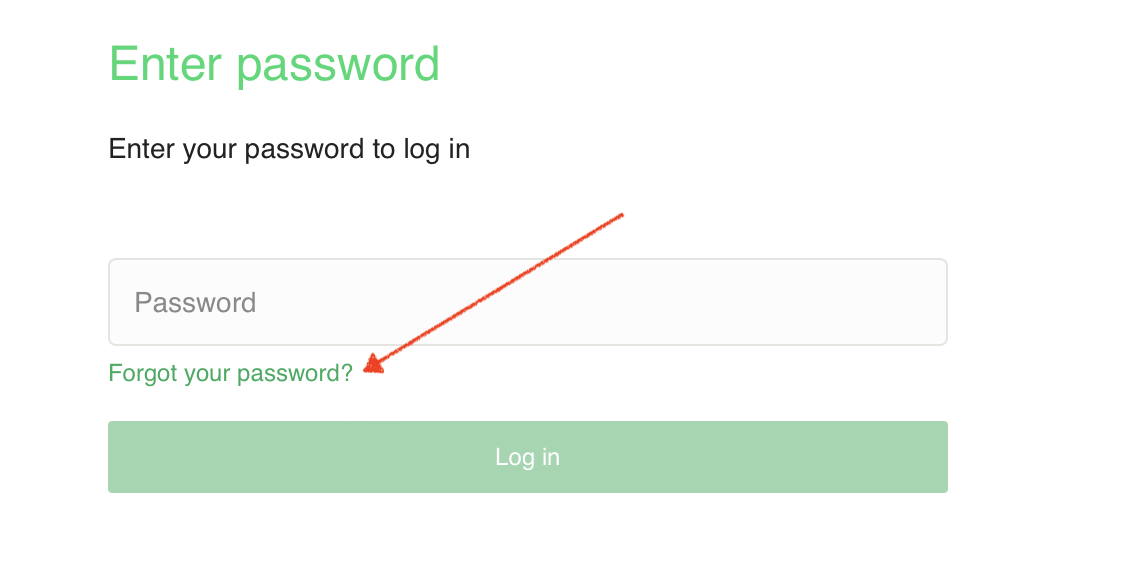
- On the password entry screen, select Forgot your password?
- Check your email inbox for the password reset message.
- Follow the instructions to create a new password.
If your account uses Single Sign-On (SSO), password resets must be performed through your organisation's identity provider, for example Azure AD or Okta.
Note: If you do not receive the reset email, check your spam folder or contact your IT department to verify whether email filtering is blocking Limecraft messages.
Reset your Two-Factor Authentication (2FA)
If Two-Factor Authentication (2FA) is enabled for your account but you no longer have access to your authenticator app (for example, after losing or replacing your phone), you can reset your 2FA registration.
Steps:
- Sign in to Limecraft using your username and password.
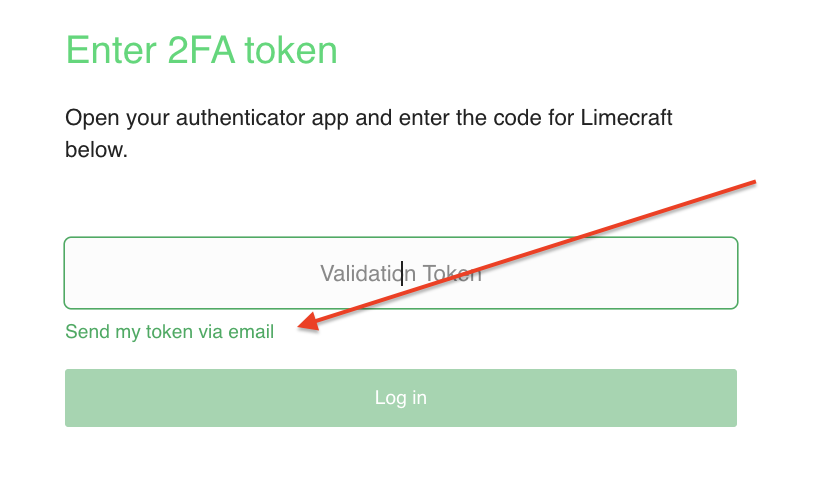
- When prompted for your 2FA code, select Send my token via email.
- Use the one-time token sent to your account email address to complete the sign-in process.
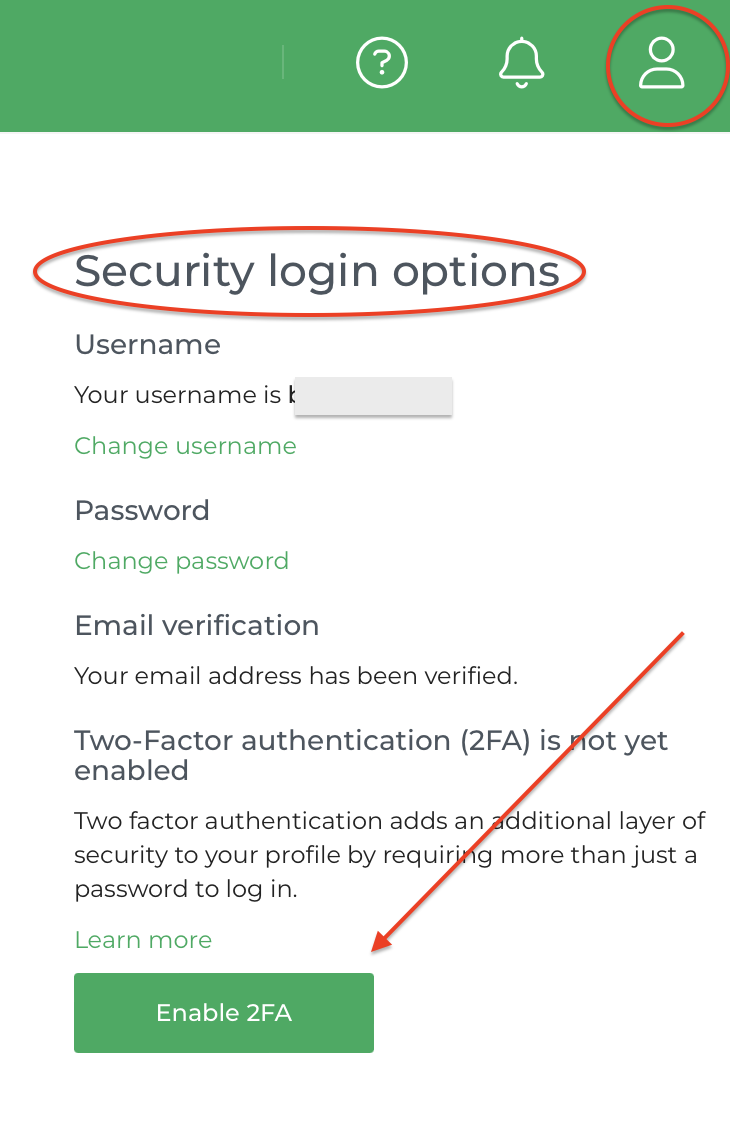
- Open your user preferences.
- In the Security login options panel, disable and re-enable 2FA
- Scan the new QR code with your authenticator app to register your device again.