
When working with AAF exports, having precise control over how your media is structured in the edit can make a significant difference to both efficiency and clarity in post-production.
Building on the standard AAF export template workflow, Limecraft allows you to define exatly how clips are arranged across tracks using Advanced Track Definitions.
This article explains how to use these advanced options to tailor your AAF sequences to match your editorial requirements.
When to Use Advanced Track Definitions
The default AAF export behavior is designed to work well for most workflows. However, there are situations where you may need more control, for example:
- You want specific cameras or audio devices on dedicated tracks
- You need consistent track layouts across multiple edits
- You are preparing sequences for conform or finishing workflows
- You want to reflect on-set structure (e.g. camer ISO tracks, grouped clips) directly in the timeline
In these cases, Advanced Track Definitions give you full control over how your sequence is built.
Enabling Advanced Track Definitions
To access these settings:
- Open your AAF Export Template.
- Edit the Sequence configuration
- Locate the Secuence Type field
- Select "Sequence with advanced track mapping based on devices"
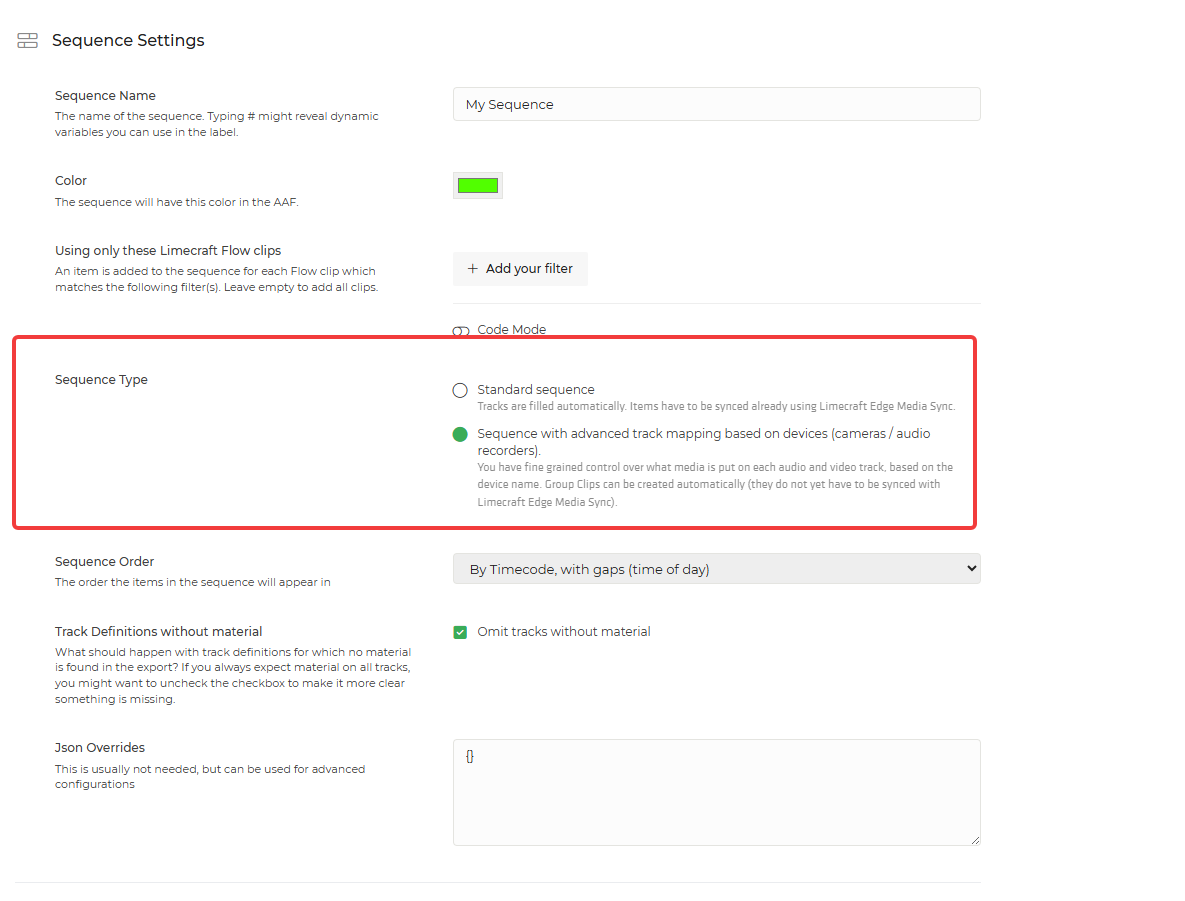
Once selected, a new Track Definitions panel becomes available.
Understanding the Track Definitions Panel
The Track Definitions panel allows you to construct your sequence track by track. Instead of relying on automatic placement, you explicitly define what each track contains and how it behaves.
This gives you a predictable and repeatable sequence structure across exports.
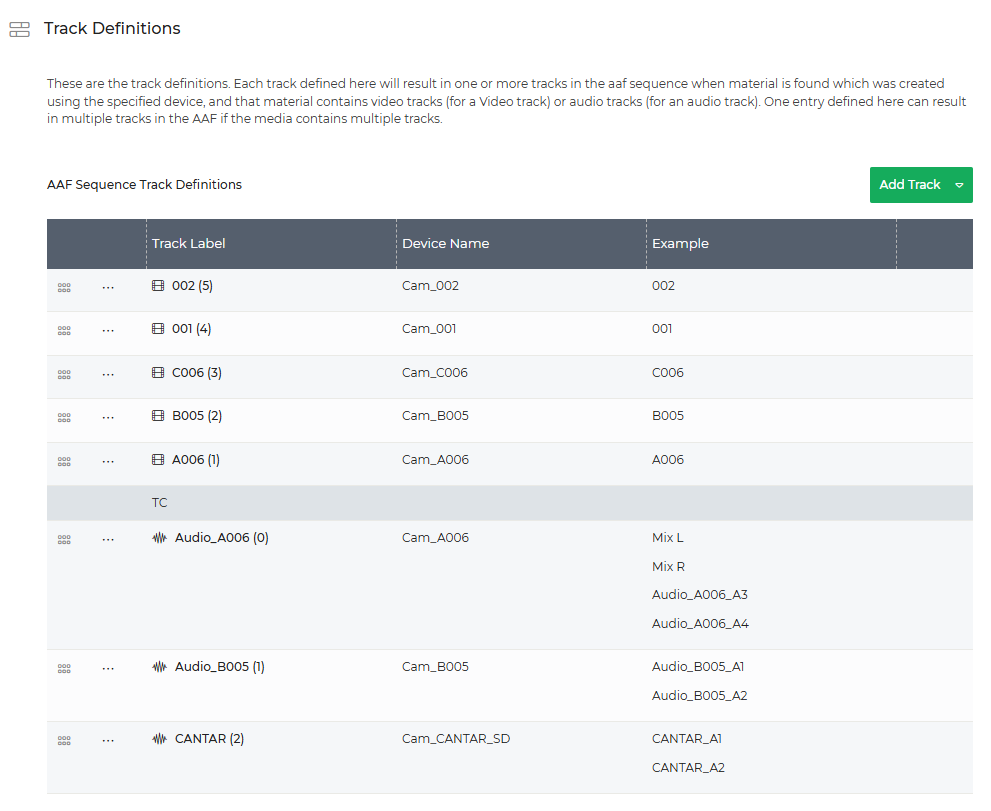
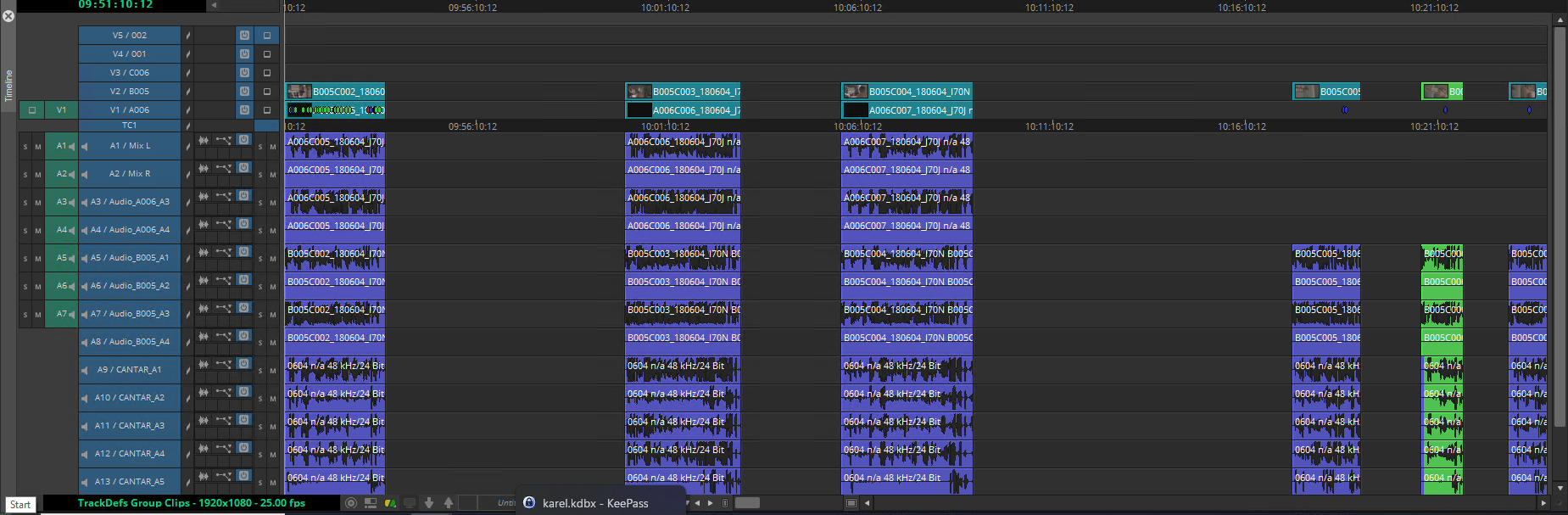
Key Configuration Options
1. Define clip type per track
For each track, you can specify whether it should contain:
- Master Clips
- Auto-generated Group Clips
This is particularly useful when you want to separate raw ISO material from grouped, multicamera clips within your timeline.
2. Map tracks to specific devices
You can assign each track to a specific camera or audio device.
For example:
- Camera A always lands on V1
- Camera B always lands on V2
- Boom audio is placed on A1-A2
- Lavalier mics are assigned to dedicated tracks
This ensures consistency between sequences and aligns your edit with how material was captured on set.
3. Control Group Clip behaviour
When working with Group Clips, you can define the auto-selected camera angle for each track.
This mirrors the behaviour in Avid when you right-click a Group Clip and choose an active angle. It allows you to control which angle is visible by default in the exported sequence.
4. Customise audio track labelling
For audio tracks, you can define:
- Custom track labels
- Per-subtrack labels for clips with multiple channels
This is especially helpful when working with multi-channel audio, as it improves readability and makes it easier for editors and sound teams to identify sources quickly.
5. Handle empty tracks
You can choose how empty tracks are treated:
- Omit empty tracks for a cleaner sequence
- Keep empty tracks visible to highlight missing material
Keeping empty tracks can be useful in quality control workflows, where gaps in expected media need to be clearly flagged.
Practical example
Using Advanced Track Definitions, you might configure a sequence like this:
- V1: Camera A (Group Clips, auto-select angle A)
- V2: Camera B (Group Clips, auto-select angle B)
- V3: Master Clips (reference or ISO)
- A1-A2: Boom microphone
- A3-A6: Lavalier microphones (labelled per channel)
This structure will be applied consistently to every AAF export using the template.
Best Practices
- Align with editorial expectations: Match your track layout to what editors expect in Avid
- Keep it consistent: Use the same template across projects to reduce confusion
- Use clear labels: Well labelled tracks save time during editing and finishing
- Decide on empty track behaviour early: This avoids ambiguity in downstream workflows