
Offloading footage immediately after the shoot is a common scenario where Limecraft Edge can streamline your workflow. In this article, we will walk you through the typical steps for importing and backing up footage to both a network drive and a travel disk directly on set.
TABLE OF CONTENTS
Before You Begin
Make sure your preliminary setup is properly configured by following this checklist:
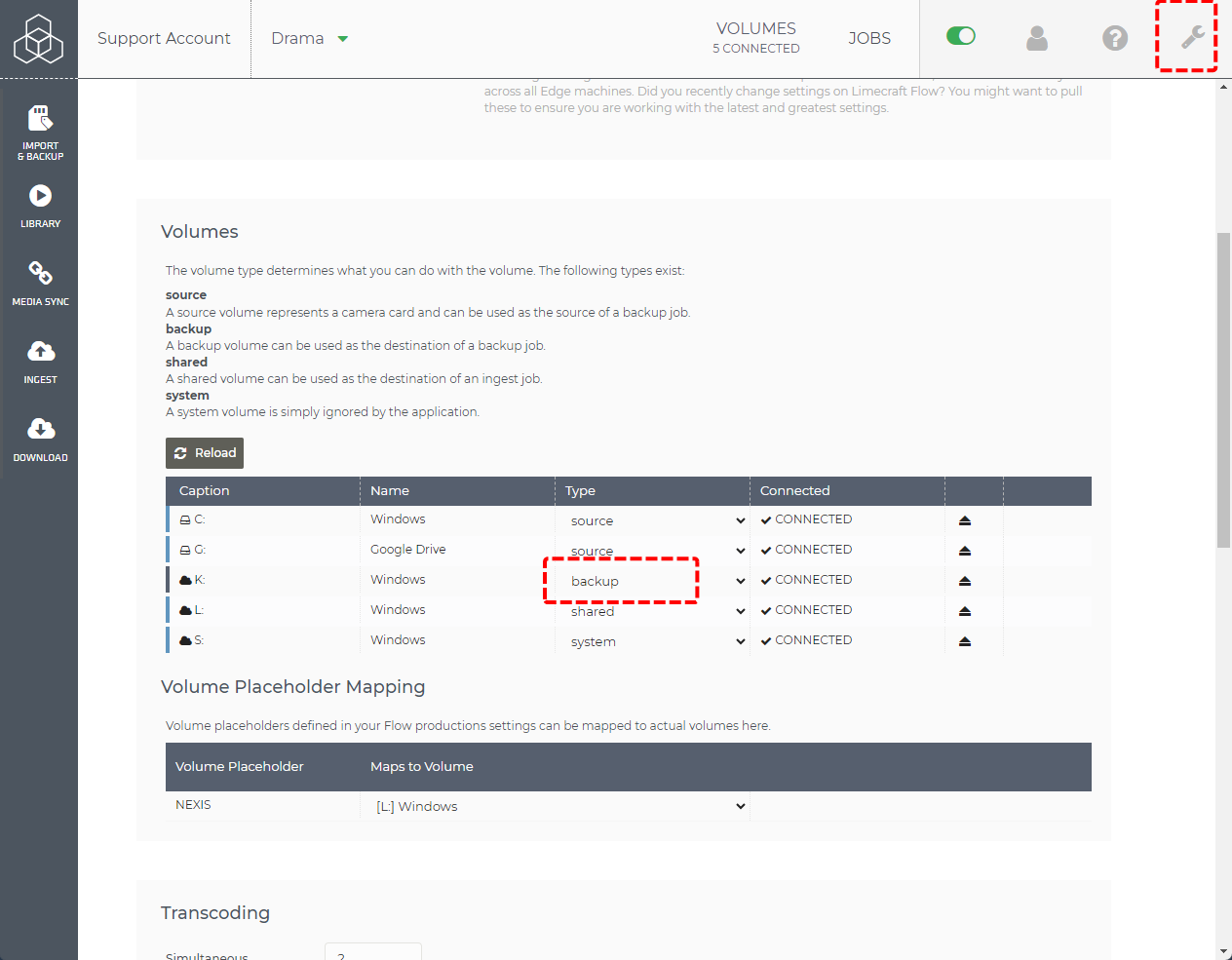
Backup drives are mapped within the Edge settings on your desktop application.
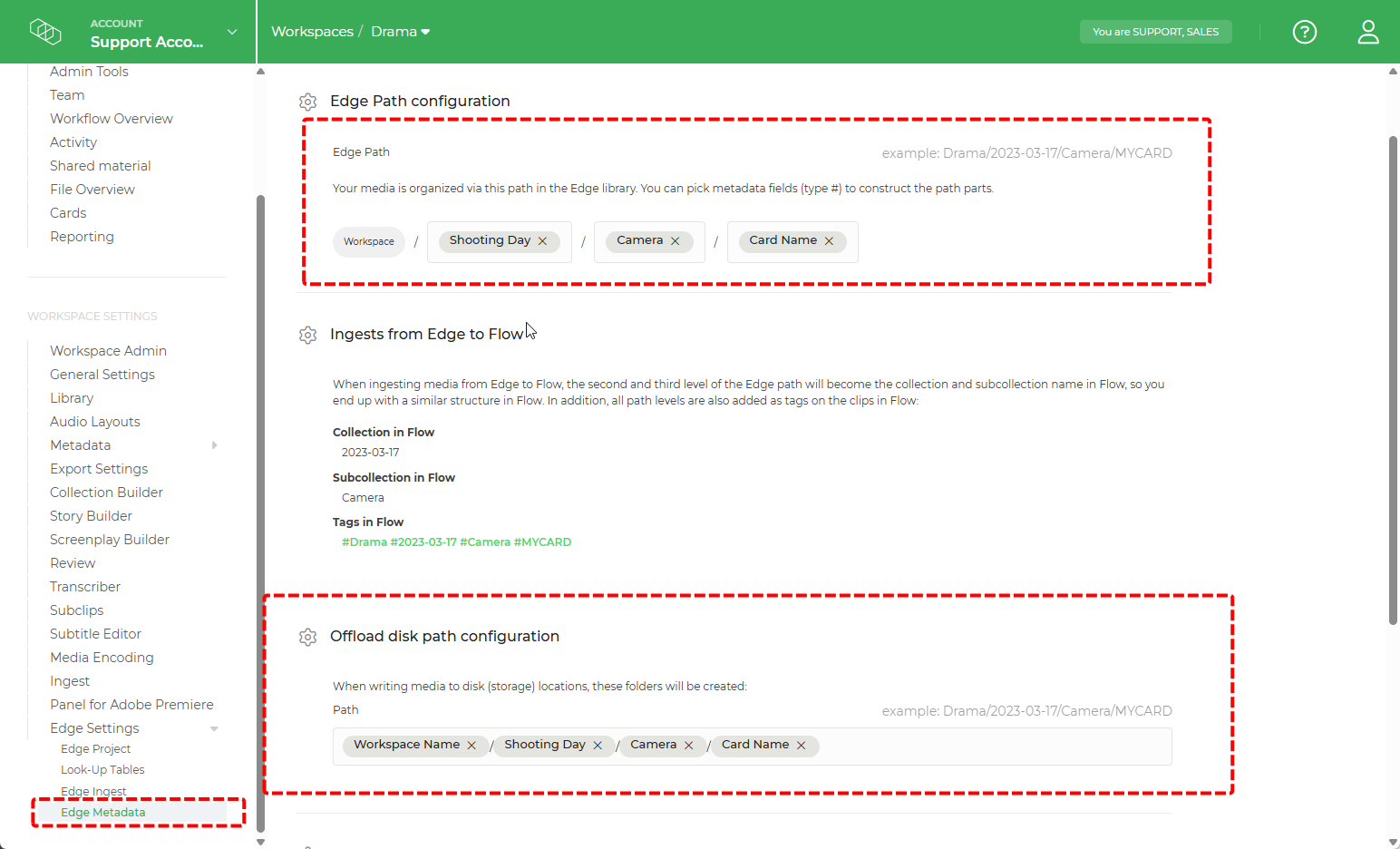
Edge Metadata and the offload path are defined in the Edge Metadata Settings in your Limecraft workspace settings.
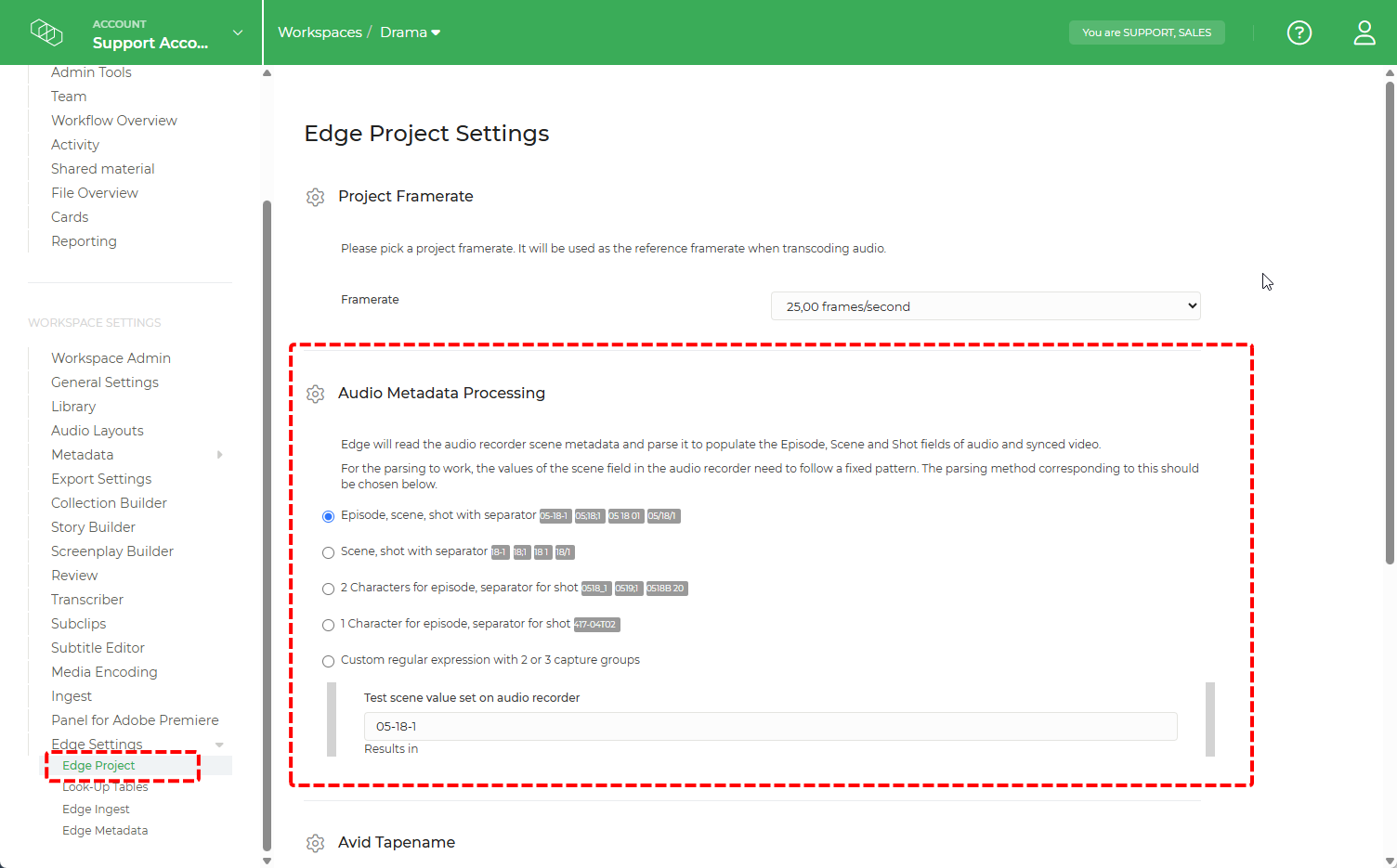
Audio Metadata Processing settings are configured correctly in the Edje Project Settings in your Limecraft workspace.
Setting up the backup drives:
Edge metadata settings and the offload path:
Audio Metadata Processing settings:
NOTE: If proxies are not required, you can skip importing clips to Edge by unticking the import option.


NOTE: Backup can be performed offline, so an active network connection is not mandatory.
Offloading Media: Step by Step
- Select the source cards which you want to import and back up.
- Choose backup destinations. The preconfigured backup drives (e.g., network drive and travel disk) will appear in the dropdown list.
- Indicate whether or you want to run file verification as part of the offload (which is the recommended option).
- Fill in the required metadata fields, which were previously configured in the Edge Metadata Settings within your Limecraft Workspace.
- Click Continue again after verifying the job details to start the backup job.
For more info, please refer to this article explaining how to Offload and Verify Media using Limecraft Edge.
Results of the Offload Process
When the process completes, backups will be created on one or more of the selected backup drives, either network drives or travel disks. The travel disk is then ready to be delivered to post-production for further processing. Upon successful backup, the verification manifests are written in the selected file formats alongside the media files.
NOTE: If clips were imported to Edge during the offload, you can proceed from this step to ingest, and transcode and transfer files directly.