
Metadata helps you organise, describe, and manage your media assets in Limecraft Workspace. Depending on your needs, metadata can be configured at different levels:
Workspace level: Defines metadata that applies to a workspace.
Collection level: Defines information that applies to a collection within a workspace library.
Clip level: Defines information that applies to an individual video, audio or image.
This article explains how to configure collection-level metadata fields in your Limecraft Workspace production settings. Collection metadata is useful for capturing information that describes or categorises a group of clips rather than a single media asset.
For information about configuring workspace-level metadata, see Configuring and Using Workspace-Level Metadata.
For information about configuring metadata fields for individual clips, see Configuring and Using Clip Level Metadat in Limecraft
Important: Avoid changing the configuration of existing metadata fields if they are already being used in your production. Changes to field settings may affect existing metadata values or workflows that depend on these fields.
Before you begin
To access workspace settings, you need Workspace Admin or Account Admin permissions.
Access collection metadata settings
To manage collection metadata fields:
- Open your Limecraft Workspace.
- Go to Workspace Settings.
- Open the Metadata section.
- Open the Collection Metadata section.
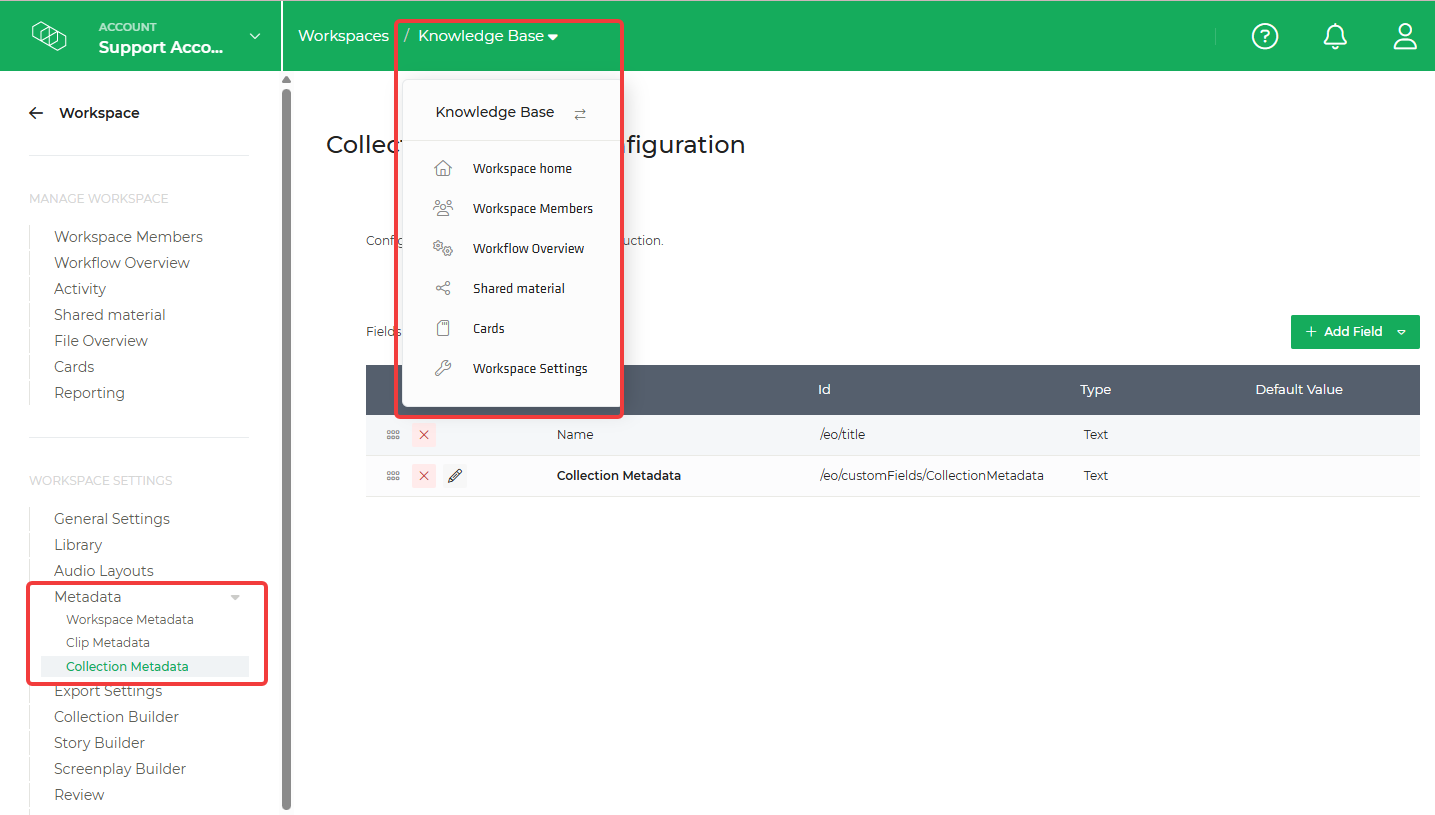
In this section, you can view and manage the metadata fields that are available at collection level.
Create a custom collection metadata field
To add a new collection metadata field, click the Add field button.
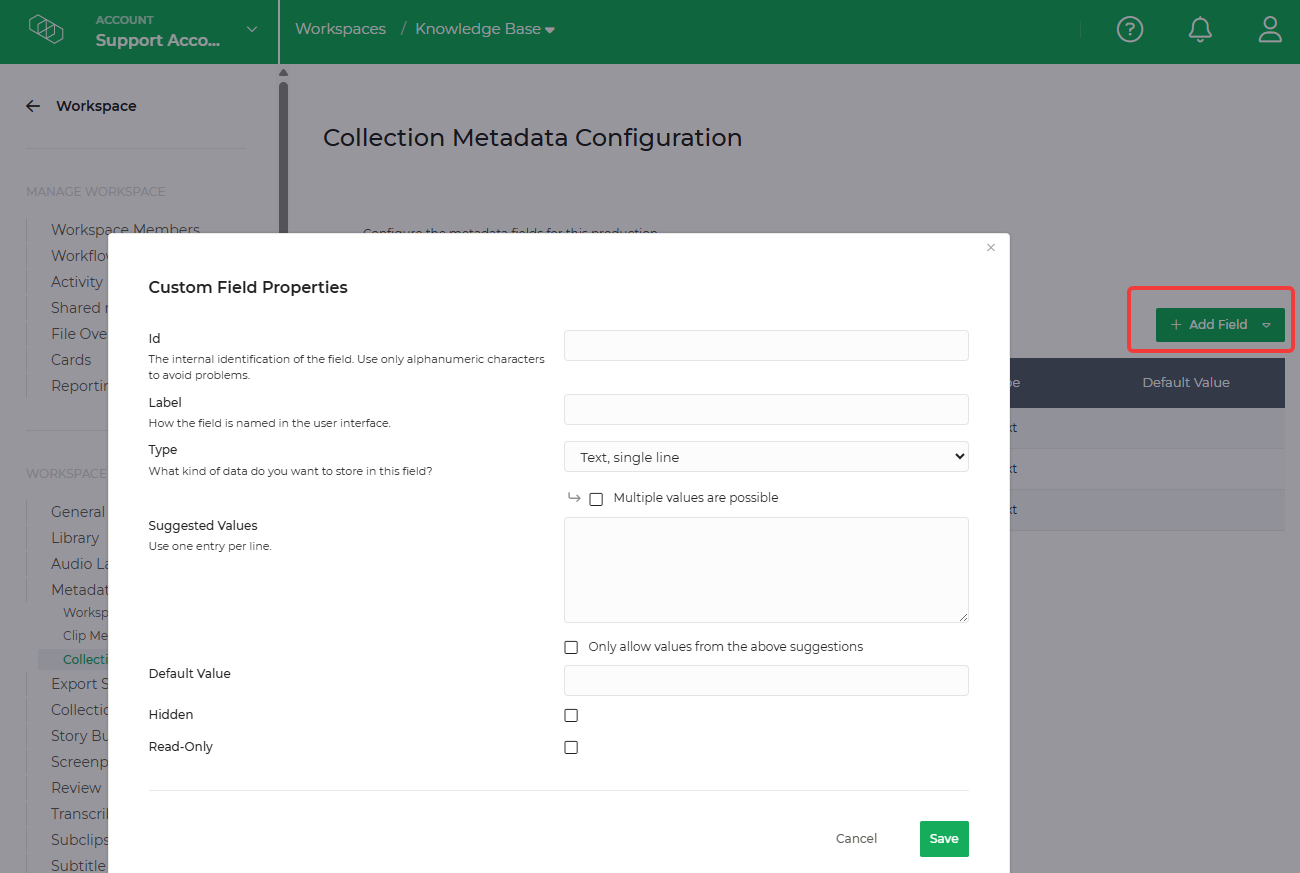
A configuration window will appear where you can define the field settings:
ID: The unique identifier of the metadata field. This is used internally by Limecraft and cannot be changed afterwards.
Label: The name displayed to users in the Limecraft Workspace interface.
Type: Defines what kind of information the field stores, such as text, numbers, dates, or other available metadata formats.
After entering the required information, save the field to add it to your collection metadata configuration.
Manage existing collection metadata fields
Existing collection metadata fields can be managed from the metadata fields list table. From this overview, you can review the configured fields and update their settings if needed.
You can manage metadata fields using the available actions:
- Change the order of the fields: Use the action button to adjust the order in which fields are displayed.
- Edit a field: Update the field configuration, such as the label or other settings.
- Delete a field: Remove a metadata field using the delete option.
Important: Be careful when editing or deleting metadata fields that are already in use. Changes may affect existing collection or workflows that rely on these fields.

View and update collection metadata
Once collection metadata fields have been configured, you can view and update the metadata values from the collection details view.
To access collection metadata:
- Open the collection in your workspace library.
- Click the cogwheel icon to open the collection options.
- Select Show details.
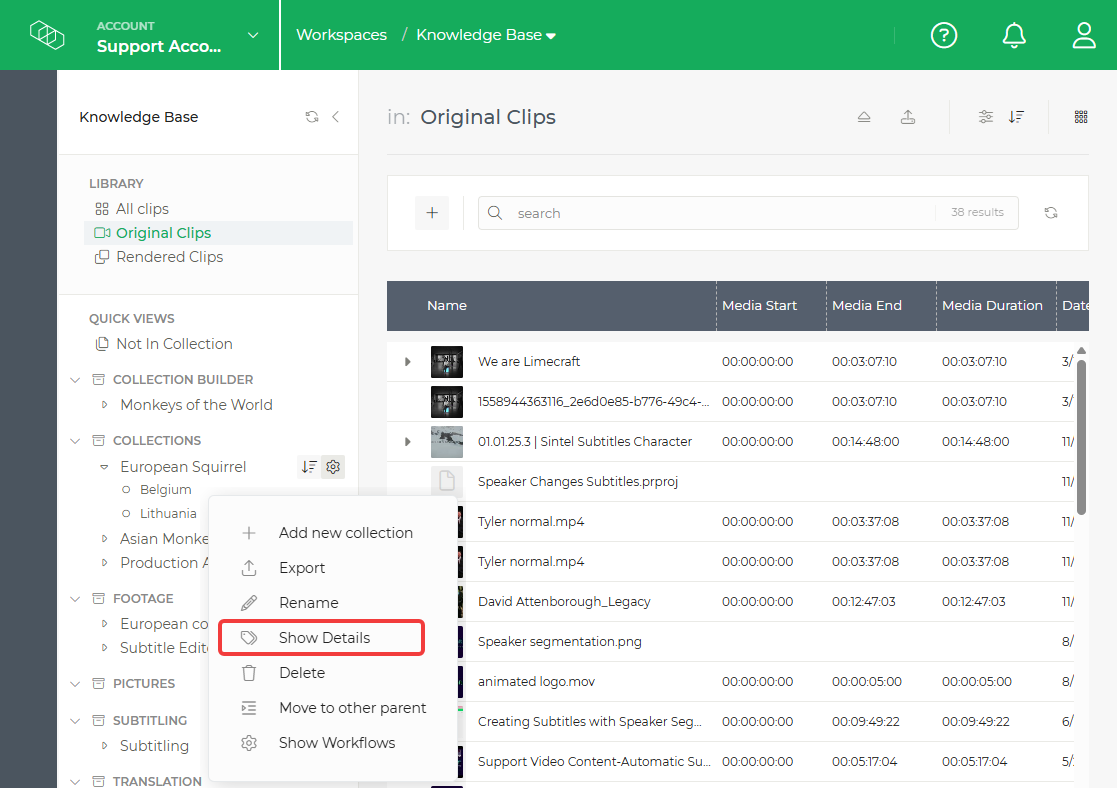
The collection details panel displays the available metadata fields and their current values. You can also add or update metadata values directly from this section.
Keeping collection metadata up to date helps teams organise, search, and manage related clips more efficiently.